
Objectives
Today, we will do:
- Learn what is versioning
- Git introduction
- Lab: Git basics
What is versioning?
Also known as:
- Version Control or Version Control System (VCS)
- Source Control Management (SCM)
What is versioning?
It is the practice of tracking and managing changes to software code.
Version Control System (VCS) (or Source Control Management (SCM)) - tools that help you keep track of your code with a complete history of changes.
It is now a standard in software development to maintain a single source of truth for development teams, which allows multiple developers to work on the same codebase.
Why VCS?
- How to share the work?
- How to keep track of changes and their authors?
What do you manage with VCS?
- Source code, or any text-based documents
- Project versions
- Global project version (tags, like
1.2.4-beta) - Each modification is a version!
- Global project version (tags, like
- Change requests ("Pull requests" in GitHub)
Semantic Versioning (SemVer)
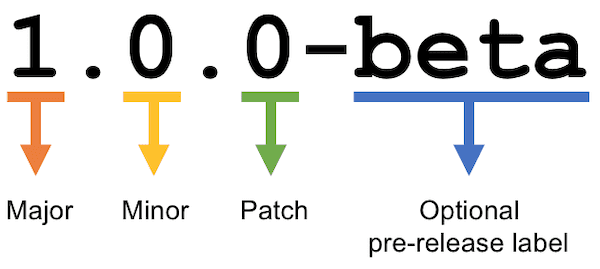
Format: MAJOR.MINOR.PATCH-LABEL
MAJOR- when you make incompatible API changesMINOR- when you add functionality in a backward-compatible mannerPATCH- when you make backward-compatible bug fixesLABEL- optional, for pre-release and build metadata (extension to the MAJOR.MINOR.PATCH format)
Examples:
2.3.1
1.0.0-alpha
1.0.0-betaWhat types of VCS?
- Centralized
- Distributed
Centralized VCS
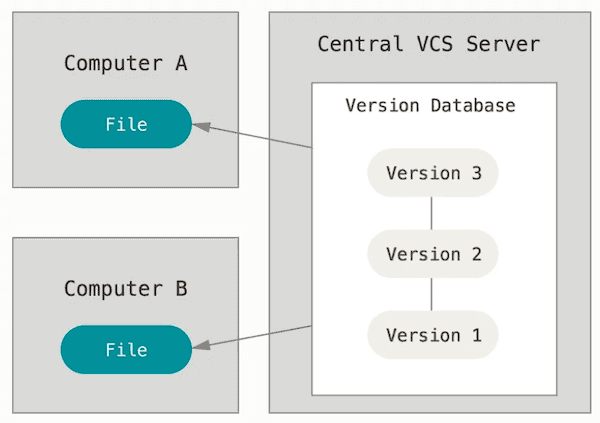
- Has a single central database (repository)
- Single point of failure
- Requires a network to inspect a history
Examples: Apache Subversion (SVN)
Distributed VCS
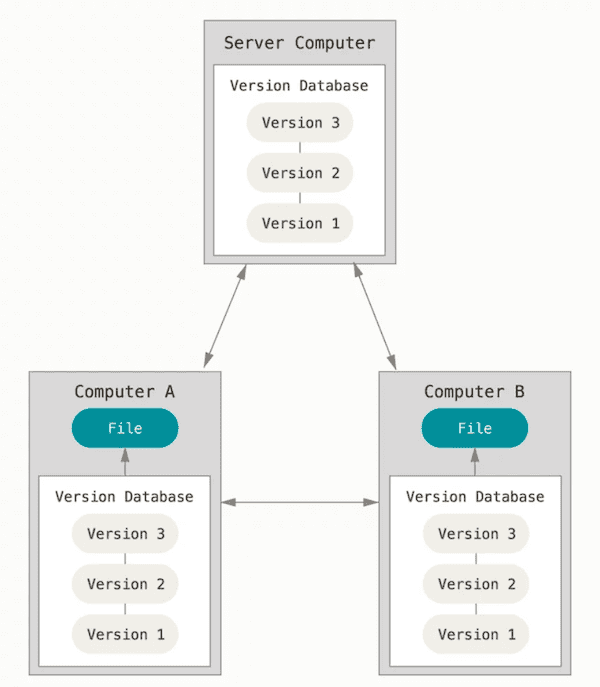
- Local database (repository) with the full history
- Independent work
Examples: Git, Mercurial SCM
What is Git?
- The most popular VCS
- Distributed
- Open Source and free
- Created in 2005 by Linus Torvalds
Why learn Git?
- Git outclasses other SCM tools
- Git is obligatory to be mastered for everyone involved in software development processes
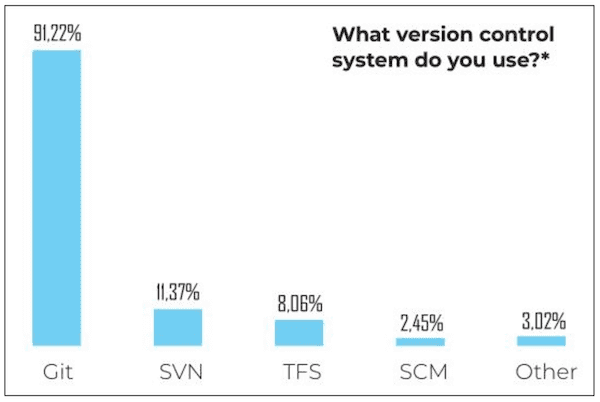
The information is from "State of software development in 2019", codingsans.com.
Git: Ecosystem
- Client tools:
gitCLI (command-line interface)- GitHub Desktop
- GitKraken
- Sourcetree
- Fork
- etc...
- Repository hosting services:
- GitHub
- GitLab
- Bitbucket
- etc...
Git: Basic concepts
- The Git project:
- on your computer - local repository
- in a remote location - remote repository
- Each set of changes to files in the history is a commit
- When choosing what to commit, files are staged
- Each commit has a parent commit (except for the first one)
- The current commit is the HEAD
- Retrieving commits from the remote repository is pulling
- Sending commits to the remote repository is pushing
Git: Repository
- It is the
.git/folder inside a project - It tracks all changes made to files in your project
- It stores the entire history of changes
- Can be local and remote
Note! If you delete the
.git/folder, then you delete your project’s history.
Git: Common usage scenario
- Checking out remote changes:
git clone(very first time) orgit pull(always afterward) - Editing a file:
E.g.: add a new functionattack()to theplayer.jsfile - Adding a file to "staging area" for the next commit:
git add player.js - Commit the modification to the local repository:
git commit -m "Add player attack" - Send local modifications to the remote repository:
git push - Resolution of any conflicts:
File modification and commiting again (starting from step 3)
Note! If you start a project from scratch you do
git initto create a new repository
Git: Branching
- Branch is an independent set of commits
- What makes Git so popular (it fits best to Agile and DevOps)
- Branch can be an abstraction for a line of development:
master(ormain) is the first and default one, used to keep the stable and tested version of the projectdevelopis the place where features come together before merging tomasterfeature_Xis a branch for a single feature "X"
- Branch can be temporary:
- To have a change request
- To develop an independent feature
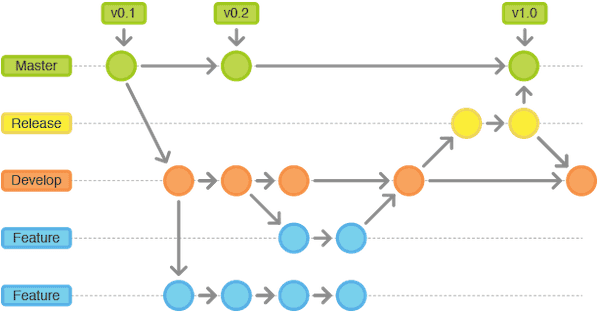
Git: Merging branches
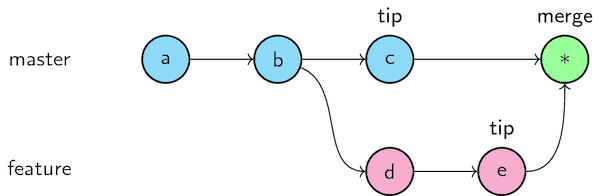
- The branches are merged to have all the changes in only one branch (eventually in
master) - When changes conflict with each other, the merge fails:
Automatic merge failed; fix conflicts and then commit the result.
Git: Resolving conflicts
- Conflicts are changes made on the same part of the same file in two branches
- Must be resolved manually:
- edit files with a resolver tool (or text editor)
- commit the files
- push to the remote branch
Now, it is a time for the lab work!
Pause reading here, do the lab work, and come back later!
Git: .gitignore
- The
.gitignorefile contains the files to be ignored by Git - Works with wildcards
Eg:.*- ignore all files starting with a. - Useful for ignoring files specific to your local development environment:
- Codeblocks or VScode configuration files
./node_modulesfolder in Node.js
Git: Tagging
So far:
- changes are managed, but not the project
- all the commits come one after the other
- the only version available is the commit ID
Tagging versions:
- Tag a commit to be a particular software version
- It is easier to identify the versions
- You must push tags to the remote repository in the same way as commits
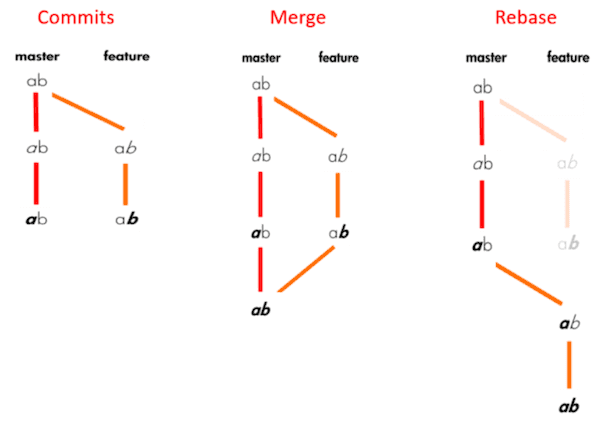
Git best practices: use rebase instead of merge
Git best practices: Conventional Commits
It is a specification for writing commit messages
The commit message should be structured as follows:
<type>[optional scope]: <description>

[optional body]

[optional footer]
Learn more here
Where can you use Git?
- Software development
- Writing (books, articles, theses)
- Whatever requires tracking the history...
Open-source project management
How to contribute to an open-source project on GitHub?
- Fork a repository to your account
- Work on a change on your fork
- Ask for your changes to be added to the original repository by creating a pull request